Requesting Elevation (JIT Access)
Just-in-Time (JIT) access enforces least privilege by ensuring user accounts do not possess standing administrative rights. When a user requires elevated credentials to perform administrative duties, they submit a time-bounded elevation request directly within PAM-Pro.
How Just-in-Time Elevation Works
Managed accounts governed by PAM-Pro are assigned specific access policies. When a policy requires approval or administrative justification, the account credentials cannot be checked out until a valid request is granted.
Submitting an Elevation Request
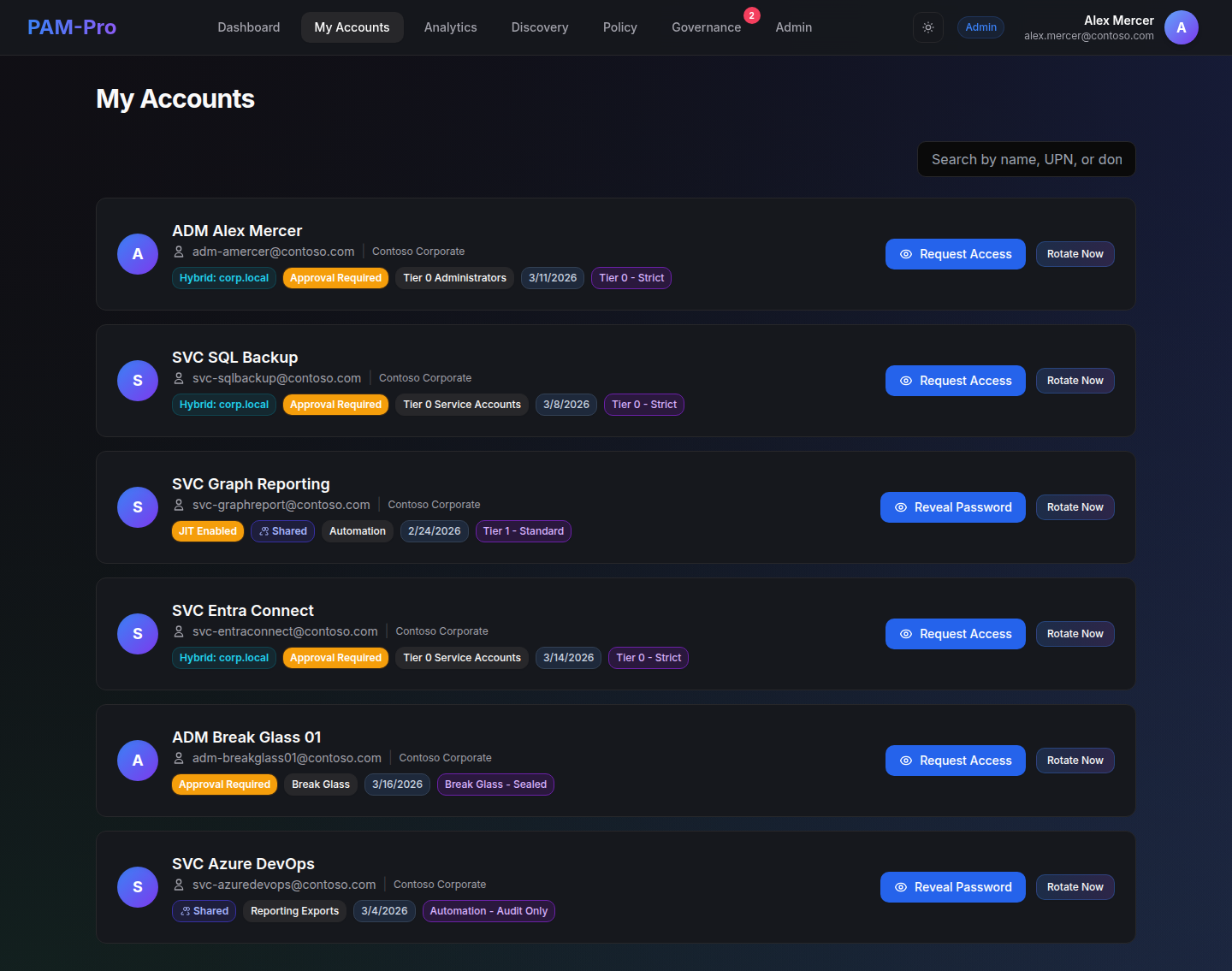
- Navigate to My Accounts in the PAM-Pro portal.
- Locate the account you need to access. If the account requires elevation, the action button will read Request Access.
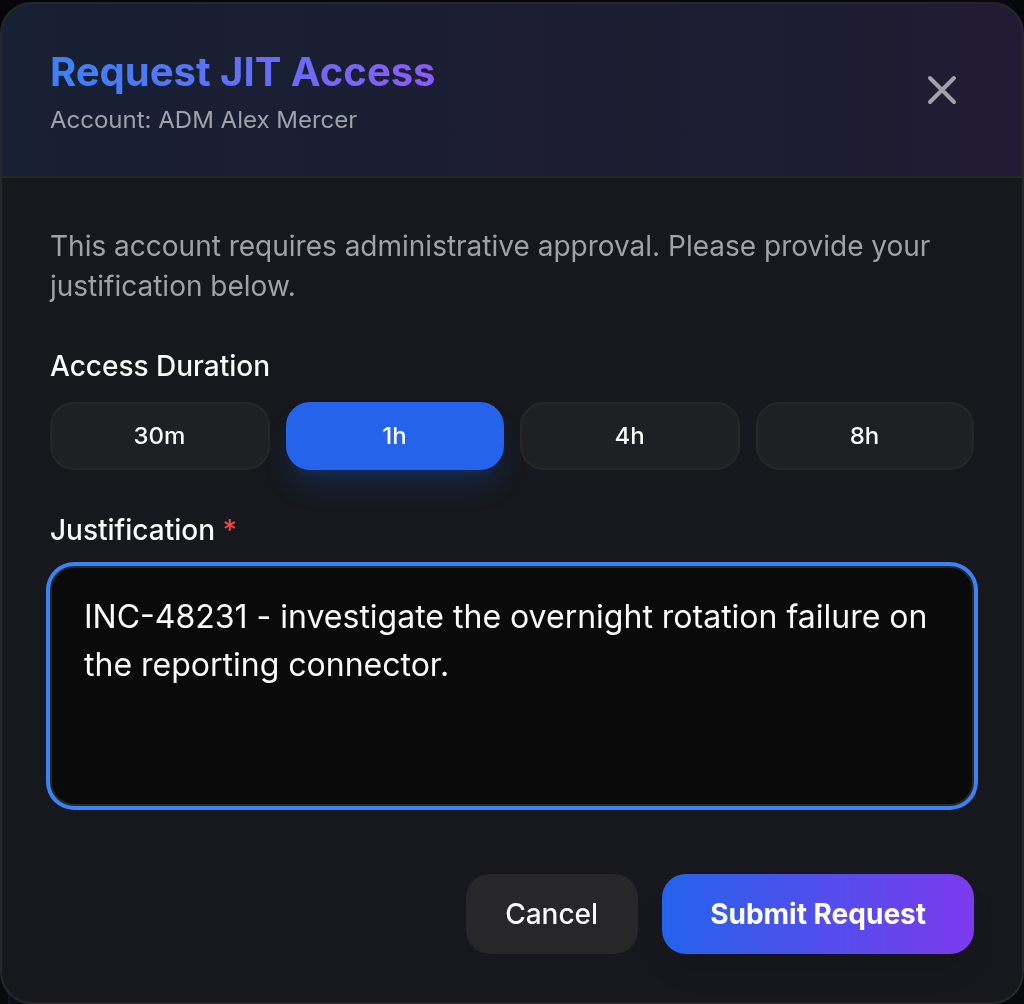
- Click Request Access to open the elevation modal.
- Provide the required operational details:
- Duration: Specify the number of hours access is needed (constrained to the maximum allowed by policy).
- Business Justification: Enter a detailed explanation of why privileged access is required.
- Ticket ID: If mandated by the governing policy, supply a valid change management or incident ticket reference (e.g.,
CHG-40912,INC-88231).
- Click Submit Request.
Auto-Approval vs. Multi-Party Approval
How an elevation request is processed depends on your active policy configuration:
- Auto-Approval Policies: If the governing policy specifies no approvers (or defines automated self-service rules), the request is evaluated and approved immediately by the system engine. The interface confirms the grant in real time, and the action button immediately switches from "Request Access" to "Reveal Password".
- Approver-Gated Policies: If one or more approver email addresses or UPNs are designated on the policy, the request transitions to a Pending Approval state. Designated approvers receive real-time notifications via email and an in-app indicator.
Tracking Request Status
While an elevation request is pending:
- Your account card in My Accounts displays an amber Pending Approval status badge.
- The elevation modal displays your submitted justification, ticket reference, and submission timestamp.
- Once an approver authorizes the request, the status badge flips to Approved with an active expiration timestamp, enabling immediate password checkout.
- If a request is rejected by an administrator, the card details the rejection notice and reason provided by the approver.
Audit Trail: Every elevation request, submission metadata, auto-approval trigger, and manual resolution is immutably logged to the tenant Write-Once, Read-Many (WORM) storage container for compliance verification.
© 2026 Huntoso LLC. All rights reserved.