Managed Accounts
Licensing: Each managed account counts toward your license consumption. Your current usage and license capacity are visible at Settings › About. SaaS Pro supports up to 1,000 managed accounts; SaaS Teams supports up to 20. On-Premise has no account limit. Accounts that are discovered but not yet promoted do not count toward your license.
Promoting Accounts to Managed
Governance requires explicit promotion to move an account from the "Discovered" list to the "Managed" list. This is by design - PAM-Pro never silently takes governance of an account. Promotion is an intentional administrative action.
To promote an account:
- Navigate to Account Governance › Account Discovery.
- In the Discovered Accounts table, locate the account you want to manage.
- Click Add to Managed. The account moves to the Managed Accounts table and enters the rotation engine.
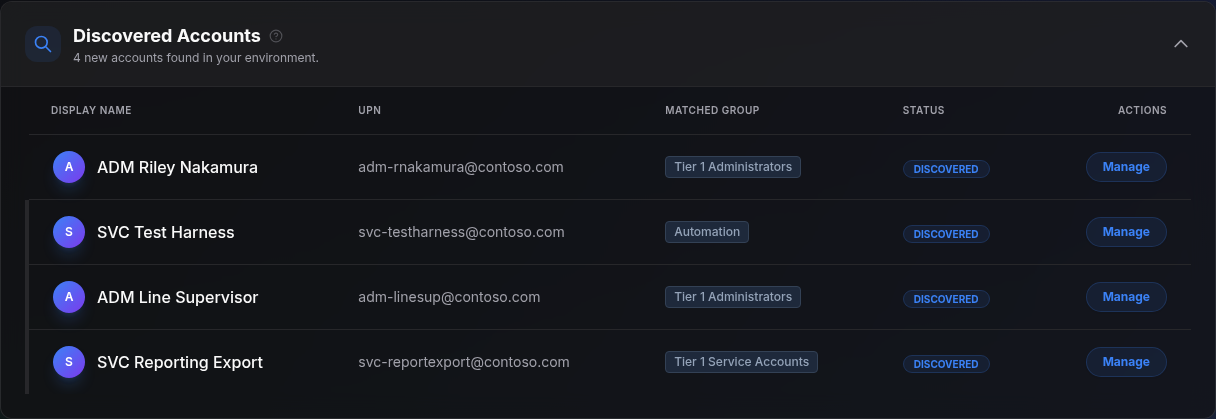
If a Discovery Group has Auto Manage enabled, accounts matching that group are promoted automatically on each scan.
Assigning Managed Accounts to Users
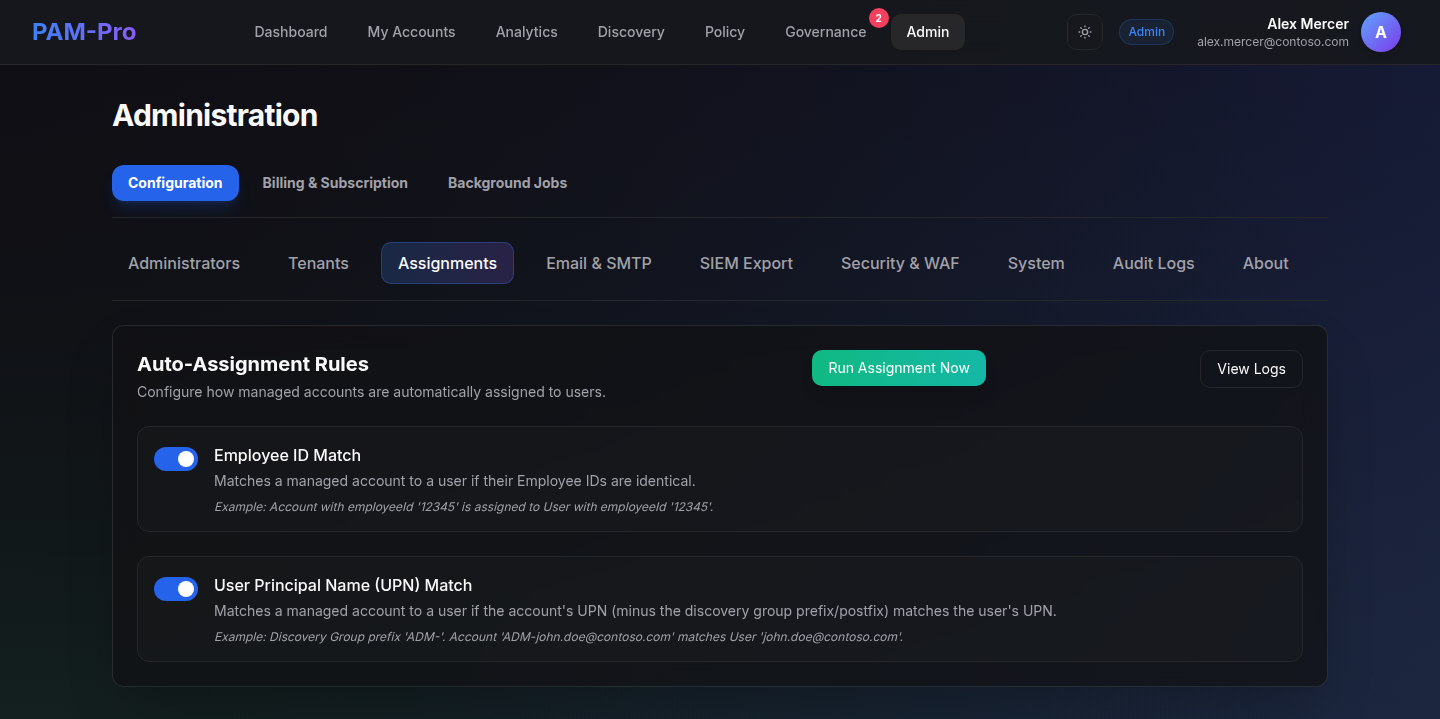
A managed account must be assigned to a user before that user can request JIT elevation for it. Assignments can be manual or automatic.
- Manual assignment: In the Managed Accounts table, click the assignment icon next to an account and select the target user by UPN.
- Auto-assignment: Enable Employee ID Match or UPN Match rules in Settings › Assignments. These rules automatically link accounts to users based on naming conventions. See Naming Conventions for how matching works.
© 2026 Huntoso LLC. All rights reserved.