Account Discovery & Domain Origin Management
PAM-Pro automatically identifies privileged accounts across your Microsoft Entra ID tenant and hybrid Active Directory infrastructure. By systematically scanning directory roles, naming patterns, and external vault migrations, PAM-Pro ensures complete visibility and governance across all privileged credentials.
Discovery Group Types
PAM-Pro provides three flexible mechanisms for defining privileged account scope:
1. Naming Pattern Groups
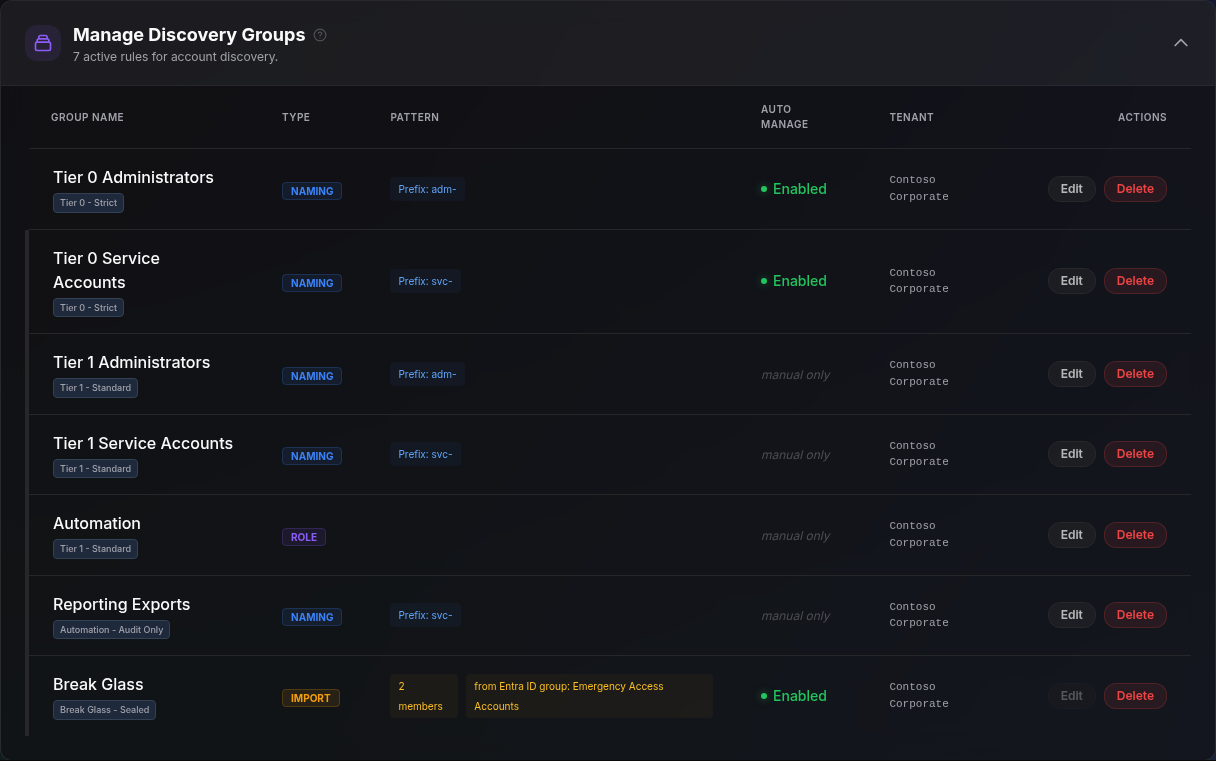
Naming pattern groups identify administrative accounts based on standardized naming conventions across your directory:
- Specify a Prefix (such as
adm-orsa_) and/or a Postfix (such as-adminor_pam). - During every scan, PAM-Pro filters your directory using OData expressions to locate accounts whose User Principal Name (UPN) matches the pattern.
2. Directory Role Groups
Directory role groups discover accounts that hold native Entra ID administrative roles:
- Select target roles such as Global Administrator, Privileged Role Administrator, Security Administrator, or Exchange Administrator.
- PAM-Pro queries role assignments directly through Microsoft Graph to ensure all role holders are brought under governance, regardless of their username format.
3. Import Groups (External Vault Migration)
Introduced in Version 3.13.0, Import Groups provide a structured path for governing accounts migrated from external legacy vaults (such as Delinea, CyberArk, or Thycotic) that follow neither standard naming conventions nor static role assignments:
- Administrators supply an explicit list of Entra ID User Object IDs (GUIDs).
- On every discovery scan, PAM-Pro queries Microsoft Graph using chunked queries to re-resolve the members in real time.
- Protection Against Strict Cleanup: Because PAM-Pro discovery normally prunes accounts that disappear from scans, Import Groups ensure migrated accounts remain current with live directory status (e.g.,
accountEnabled, employee ID, and domain identity) while surviving discovery reconciliation cycles. - If Microsoft Graph encounters transient API throttling or network failure during a scan, Import Groups automatically fall back to previously verified membership, preventing accidental account orphaning.
Configuring a Discovery Group
- Navigate to Account Governance › Account Discovery.
- In the Build a Discovery Group form:
- Enter a descriptive Group Name.
- Select the group Type (Naming, Role, or Import).
- Define the pattern, target roles, or paste the Entra Object ID list.
- Select the Target Tenant from the dropdown.
- Check Automatically manage discovered accounts if you want matched accounts to be governed immediately upon discovery.
- Click Create Discovery Group.
Running Discovery Scans
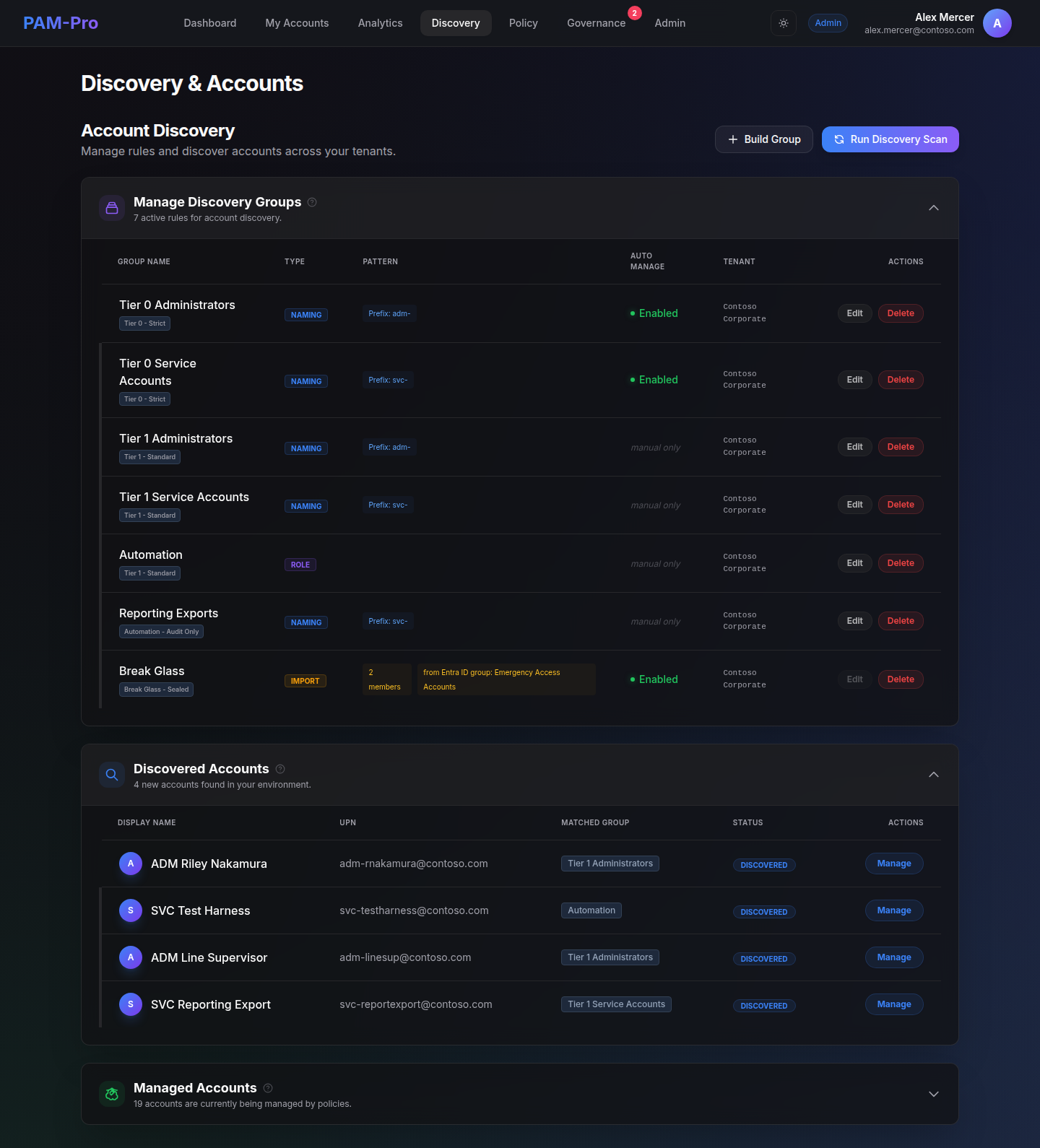
Account discovery runs on an automated background schedule (hourly), but administrators can initiate an immediate on-demand scan at any time:
- On the Account Discovery page, click Run Discovery Scan in the top-right corner.
- The status indicator confirms scan execution and reports progress in real time.
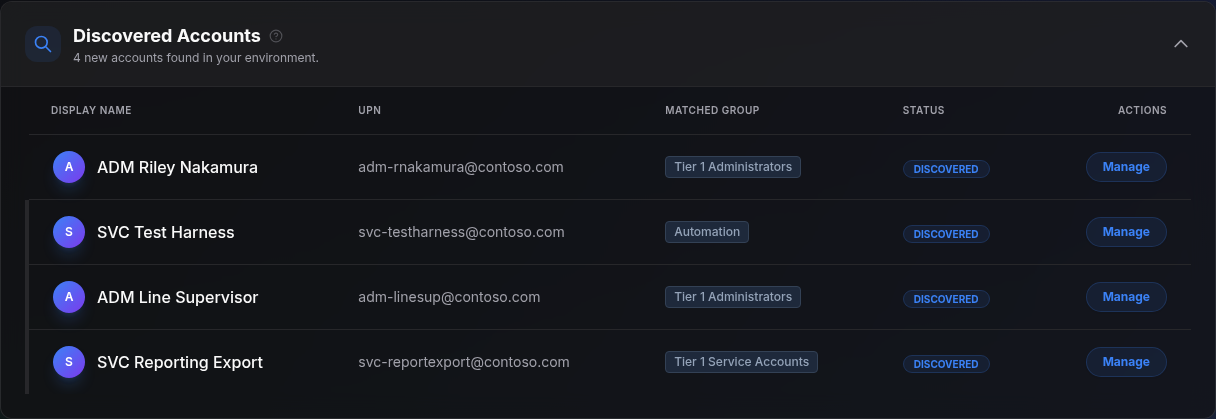
- Discovered accounts appear in the Discovered Accounts table below, displaying their display name, UPN, source group, and discovered timestamp.
Reviewing and Promoting Accounts
Discovery decouples identification from management to ensure administrators retain explicit control:
- Manual Promotion: In the Discovered Accounts table, click Add to Managed on any account to bring it into active governance and attach it to your policy rotation engine.
- Auto-Manage Promotion: If a Discovery Group has Auto Manage enabled, matched accounts are promoted automatically during the scan.
- Discovered Timestamp Tracking: Every discovered account records an immutable
discoveredAttimestamp, allowing compliance engines to track how long unmanaged privileged accounts have remained outside governance.
Domain Origin & Hybrid Directory Visibility
In modern enterprise environments, privileged accounts originate from diverse identity providers. PAM-Pro automatically detects and categorizes the origin of every discovered identity:
- Cloud-Native Accounts: Accounts created and managed directly within Microsoft Entra ID. Password resets and rotations execute directly against the cloud directory.
- Hybrid Active Directory Accounts: Accounts synchronized from on-premises Active Directory via Entra Connect or Cloud Sync. PAM-Pro captures the source Domain SID, on-premises SAM Account Name, and Distinguished Name (DN) origin, displaying a visible Hybrid badge with the source domain name.
- Sync-Inactive Accounts: Accounts that retain on-premises directory attributes but have lost active synchronization with Entra Connect (e.g., due to an OU filter change or disabled sync engine). PAM-Pro flags these accounts with an explicit warning: password resets performed in the cloud will not reach on-premises Active Directory.
- B2B Guest Accounts: External guest identities invited from partner tenants, held in separate tracking rows so tenant metrics reflect true organizational boundaries.
Domain Inventory & Connectivity Health
Under Settings › System, administrators can access two dedicated diagnostic panels:
- Domain Inventory: Groups all discovered accounts by Active Directory Domain SID, enumerating verified UPN suffixes and Entra tenants associated with each on-premises forest.
- Directory Connectivity: Performs real-time health checks against Microsoft Entra Connect sync status and performs a best-effort check for Password Hash Sync (PHS) and Password Writeback status, ensuring administrators catch synchronization breaks before credential rotations are attempted.
© 2026 Huntoso LLC. All rights reserved.