Quickstart - SaaS
Get PAM-Pro running in minutes. The SaaS deployment is fully hosted by Huntoso - no servers to provision, no infrastructure to maintain. Follow these steps to go from purchase to a live, connected tenant.
Step 1 - Visit Huntoso.ai
Open your browser and navigate to huntoso.ai. From the homepage, click Products and select PAM-Pro, or click the Get Started button in the top navigation to go directly to the pricing page.
Step 2 - Choose a Plan & Complete Purchase
Select the plan that fits your organisation's size and compliance needs. Click Subscribe and complete the checkout form.
- Provide your billing information and company name.
- Enter your Microsoft Entra Tenant ID - this is required before checkout completes and links your purchase directly to your Azure environment.
- Complete payment. You will receive an order confirmation email immediately.
Where to find your Tenant ID: Sign into the Azure Portal, go to Azure Active Directory › Overview, and copy the value labelled Tenant ID.
Step 3 - Check Your Welcome Email
Within a few minutes of purchase, you will receive a welcome email from [email protected] with the subject "Welcome to your PAM-Pro tenant". This email contains:
- Your unique PAM-Pro tenant URL.
- An activation link to complete onboarding.
- Your initial administrator login instructions.
If the email does not arrive within 10 minutes, check your spam folder or contact [email protected].
Step 4 - Click the Activation Link
In the welcome email, click the "Activate Your PAM-Pro Tenant" button. This opens the PAM-Pro portal scoped to your organisation's tenant and begins the sign-in flow.
Step 5 - Sign In with Microsoft
You will be redirected to the Microsoft authentication page. Sign in using the Global Administrator account associated with the Entra Tenant ID you entered during checkout.
Important: The account you use here becomes the initial PAM-Pro system administrator. Use a dedicated break-glass or admin account, not a personal user account.
Step 6 - Approve the Tenant Connection
After signing in, a Microsoft consent screen will appear listing the permissions PAM-Pro requires to operate within your Entra ID tenant. Review the permissions and click Accept.
These permissions allow PAM-Pro to:
- Read and manage privileged role assignments (PIM).
- Read user and group objects for account discovery.
- Write audit log entries back to your Entra tenant.
Once granted, you will land on the PAM-Pro dashboard. Your tenant is now live.
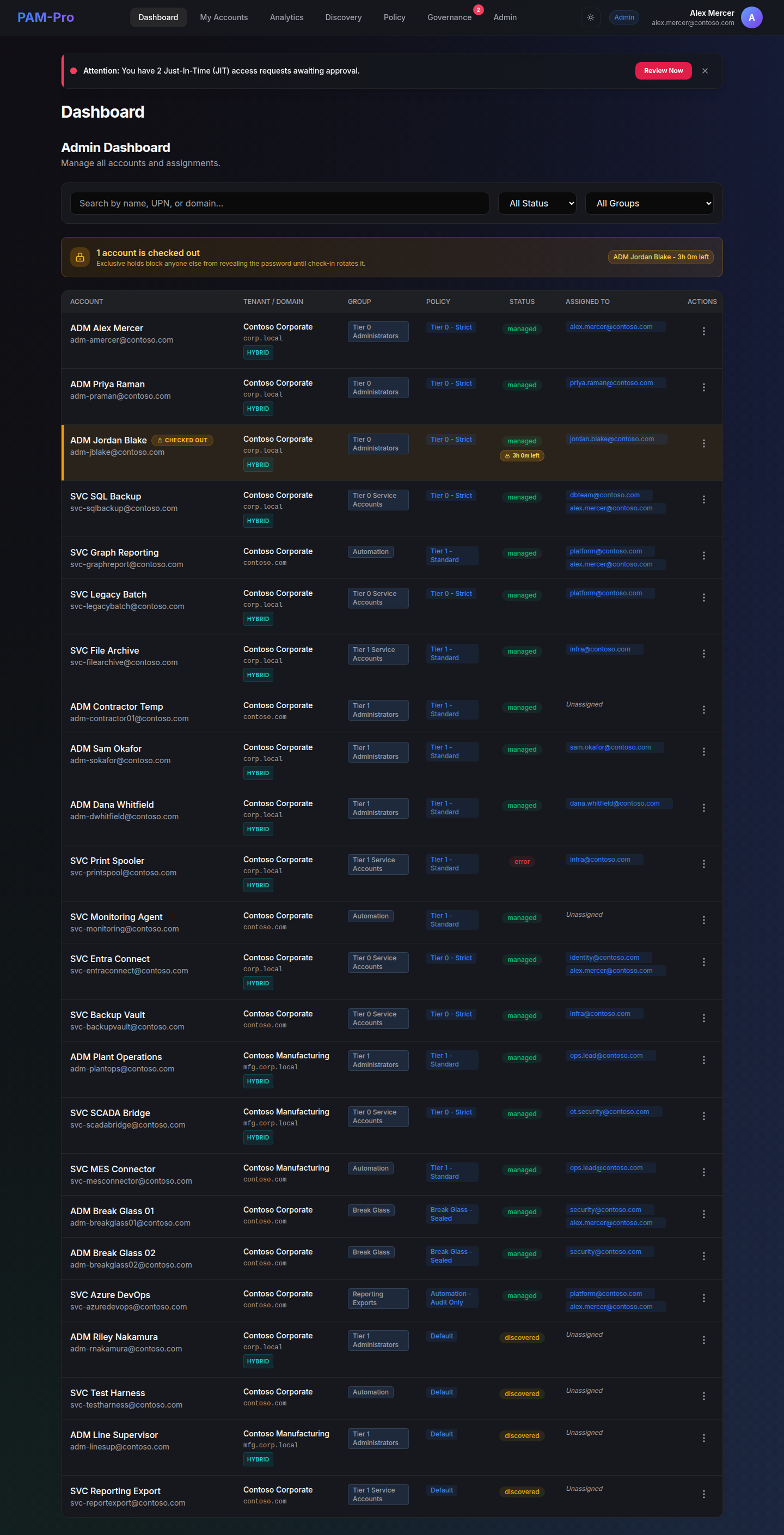
You're connected! Your SaaS tenant is provisioned and authenticated. The next step is to configure your environment - add managed accounts, set up SSO, and run your first account discovery sweep.
Quickstart - On-Premises
Deploy PAM-Pro on your own infrastructure with full control over data residency, networking, and configuration. Follow these steps to get from a fresh server to a running PAM-Pro instance.
Step 1 - Download the Deployment Package
Log in to the Huntoso customer portal at portal.huntoso.ai using your licensed account. Navigate to Downloads › PAM-Pro On-Premises and download the current release package.
The package contains the following files:
Install-PamPro.ps1- Primary setup and installation script.Initialize-Environment.ps1- Post-install environment configuration script.PAM-Pro-Installer-x64.exe- Windows application installer.config-template.json- Configuration template for scripted or silent deployments.README.md- Release notes and version-specific guidance.
Verify the download: A SHA-256 checksum is published alongside each release on the portal. Verify the downloaded package before running any scripts.
Step 2 - Required Permissions
Ensure the account running the setup scripts has the following permissions on your infrastructure. Missing permissions are the most common cause of failed deployments.
- Local Administrator on the target Windows Server host.
- Domain Administrator (or delegated rights) to create AD security groups and service accounts.
- Microsoft Entra Global Administrator to register the PAM-Pro application in Entra ID and grant API permissions.
- SQL Server
sysadminrole (ordbcreator+securityadmin) on the target SQL Server instance. - IIS Manager rights on the web server host (if separating roles).
Step 3 - Information to Gather
Have the following details ready before running the setup wizard. The installer will prompt for each value, and having them prepared prevents interruptions mid-install.
Microsoft Entra
- Your Entra Tenant ID (found in Azure Portal › Azure Active Directory › Overview).
- Your Entra Primary Domain (e.g.
contoso.onmicrosoft.com).
Database
- SQL Server hostname and instance name (e.g.
SQLSVR01\MSSQLSERVER). - Preferred database name (default:
PamProDB). - SQL authentication mode in use (Windows Integrated or SQL login).
Web Application
- The fully qualified domain name (FQDN) the portal will be hosted on (e.g.
pam.contoso.com). - An SSL certificate in PFX format and its passphrase. If you do not have one, the installer can generate a self-signed certificate for evaluation purposes.
Service Account & Mail
- A dedicated service account (domain user) for the PAM-Pro application pool (e.g.
[email protected]). - SMTP relay server address, port, and authentication credentials for outbound email alerts.
- Sender email address (e.g.
[email protected]).
Licensing
- Your PAM-Pro licence key, available from the Huntoso portal under Account › Licences.
Step 4 - Run the Initial Setup Script
Open PowerShell as Administrator on the target server, navigate to the extracted package folder, and run:
Set-ExecutionPolicy RemoteSigned -Scope Process
.\Install-PamPro.ps1
The interactive installer will prompt you for all values gathered above. Alternatively, pass parameters directly for a scripted deployment:
.\Install-PamPro.ps1 `
    -TenantId "xxxxxxxx-xxxx-xxxx-xxxx-xxxxxxxxxxxx" `
    -SqlServer "SQLSVR01\MSSQLSERVER" `
    -Hostname "pam.contoso.com" `
    -CertificatePath "C:\certs\pam-contoso.pfx" `
    -LicenceKey "XXXX-XXXX-XXXX-XXXX"
The installer will perform the following steps automatically:
- Validate all prerequisites (OS version, .NET runtime, IIS features, SQL connectivity).
- Create the PAM-Pro Active Directory security groups and service account.
- Register the PAM-Pro application in Microsoft Entra ID and request the required API permissions.
- Create and configure the SQL Server database and schemas.
- Install the PAM-Pro web application under IIS and bind the SSL certificate.
- Start the PAM-Pro services and perform a connectivity health check.
Expected runtime: The setup script typically completes in 5–15 minutes depending on network speed and SQL Server proximity. A detailed log is written to .\logs\install-[timestamp].log.
© 2026 Huntoso LLC. All rights reserved.