Secure Checkout & Check-In
PAM-Pro provides a secure, audited workflow for checking out privileged credentials on demand. By coupling credential reveals with Just-In-Time (JIT) access windows and automated rotation upon check-in, PAM-Pro ensures high-privilege credentials never remain standing or unaccounted for.
Credential Checkout Overview
When an authorized user requires access to a managed privileged account, they retrieve the credential via the My Accounts dashboard or the Account Details Modal. Depending on policy configuration, checkout operates in one of two modes:
- Standard Checkout: The user reveals the password for the duration permitted by the governing policy. The credential is automatically scheduled for rotation after the configured viewing window expires.
- Exclusive Checkout: The account is locked to a single holder for the duration specified by
exclusiveCheckoutHours(defaulting to 8 hours). Concurrent checkouts by other users are denied, and release requires an explicit check-in.
Performing a Credential Checkout
- Navigate to My Accounts in the main navigation.
- Locate the target managed account. If Just-In-Time approval is required, ensure your elevation request has been approved (see Requesting Elevation).
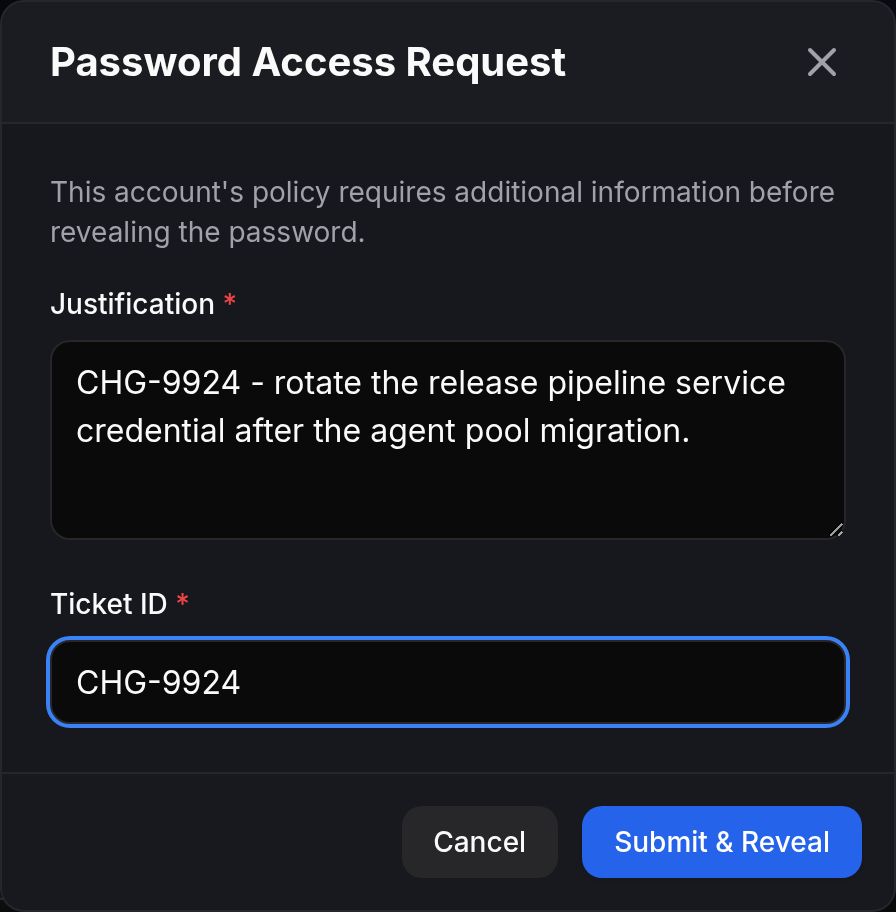
- Click Reveal Password. If the governing policy requires it, enter your business justification and ticketing identifier (e.g., Jira, ServiceNow ticket ID).
- The secret is retrieved directly from your tenant-isolated Azure Key Vault. The account card updates to show an active hold badge and countdown timer.

Exclusive Checkout & Single-Holder Locks
To eliminate credential sharing and ensure non-repudiation during administrative sessions, policies can enable Exclusive Checkout. Under an exclusive checkout policy:
- Strict Single-Holder Enforcement: Only one user can hold the active password at any moment. While an account is checked out, other users attempting to reveal credentials receive an HTTP 409 conflict notice stating who currently holds the account and when the hold expires.
- Checked-Out Dialog: When a conflict occurs, the requesting user sees a dialog detailing the current holder's identity and scheduled release time.
- Per-Account Concurrency Locks: All checkouts, check-ins, and scheduled rotations execute under a strict per-account lock (
rotation-{accountId}), eliminating race conditions between concurrent requests.
Checking In an Account
Once administrative tasks are finished, the holder must release the credential by clicking Check In on the account card or inside the Policy Modal.
Automatic Rotation on Check-In: To guarantee Zero-Trust hygiene, checking in an account immediately triggers a background password rotation. The secret previously revealed to the user is discarded and replaced with a newly generated, cryptographically secure password in Entra ID and Azure Key Vault. No code path can clear an exclusive hold without rotating the credential.
Administrator Force-Checkout
In incident response or emergency scenarios where an account is held by another user and cannot wait for manual check-in or natural expiration, an administrator can execute a Force Checkout:
- The administrator initiates checkout on the locked account and selects Force Checkout.
- The administrator enters a mandatory business justification and change ticket ID.
- PAM-Pro immediately rotates the account password, breaks the existing hold, and reassigns the hold to the administrator.
- The displaced holder receives an automated alert informing them that their session has been terminated, with their previously viewed password already invalidated.
Hold Visibility & Dashboard Indicators
Checked-out accounts are prominently visible across the interface to give operations and security teams instant situational awareness:
- Hold Summary Banner: A persistent banner at the top of the Admin Dashboard lists all currently active checkouts across your organization.
- Amber Row Accents: Held accounts in the administrative table are tinted with an amber status bar and display an active time-remaining countdown badge.
- Hold Expiry Scheduling: Account cards automatically refresh when a hold window expires, ensuring stale checkout states never persist in the browser.
© 2026 Huntoso LLC. All rights reserved.