Policy Management
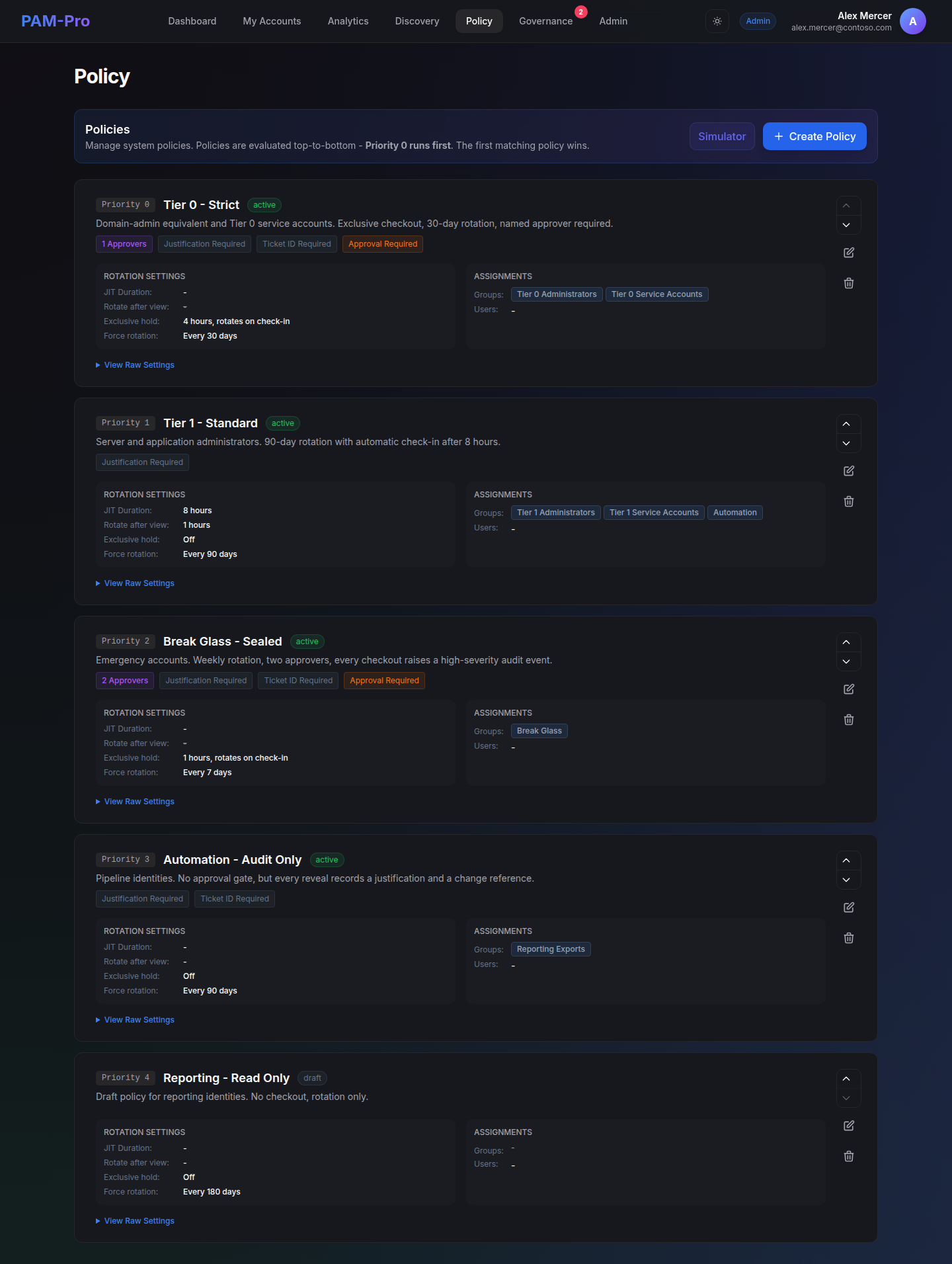
Policies define the operational and cryptographic boundaries that govern how PAM-Pro secures privileged credentials. They dictate password rotation schedules, access checkout windows, Just-In-Time approval requirements, and exclusive single-holder locks. Policies are evaluated strictly in priority order, ensuring predictable and deterministic security boundaries.
Policy Priority & Evaluation Order
Each policy carries a numeric priority value:
- Priority 1: Evaluated first. Lower priority numbers always take precedence.
- Specific Matches: If an account matches multiple policies, the most specific policy (the one with the lowest priority number) is applied.
- Global Default Policy: Should be assigned the highest priority number (evaluated last) to serve as a comprehensive baseline catch-all for accounts that do not match specialized rules.
- Zero-Trust Default: When conflicting rules overlap, the engine defaults to the most restrictive boundary to uphold Zero-Trust principles.
Core Policy Capabilities
PAM-Pro policies offer granular control across several administrative dimensions:
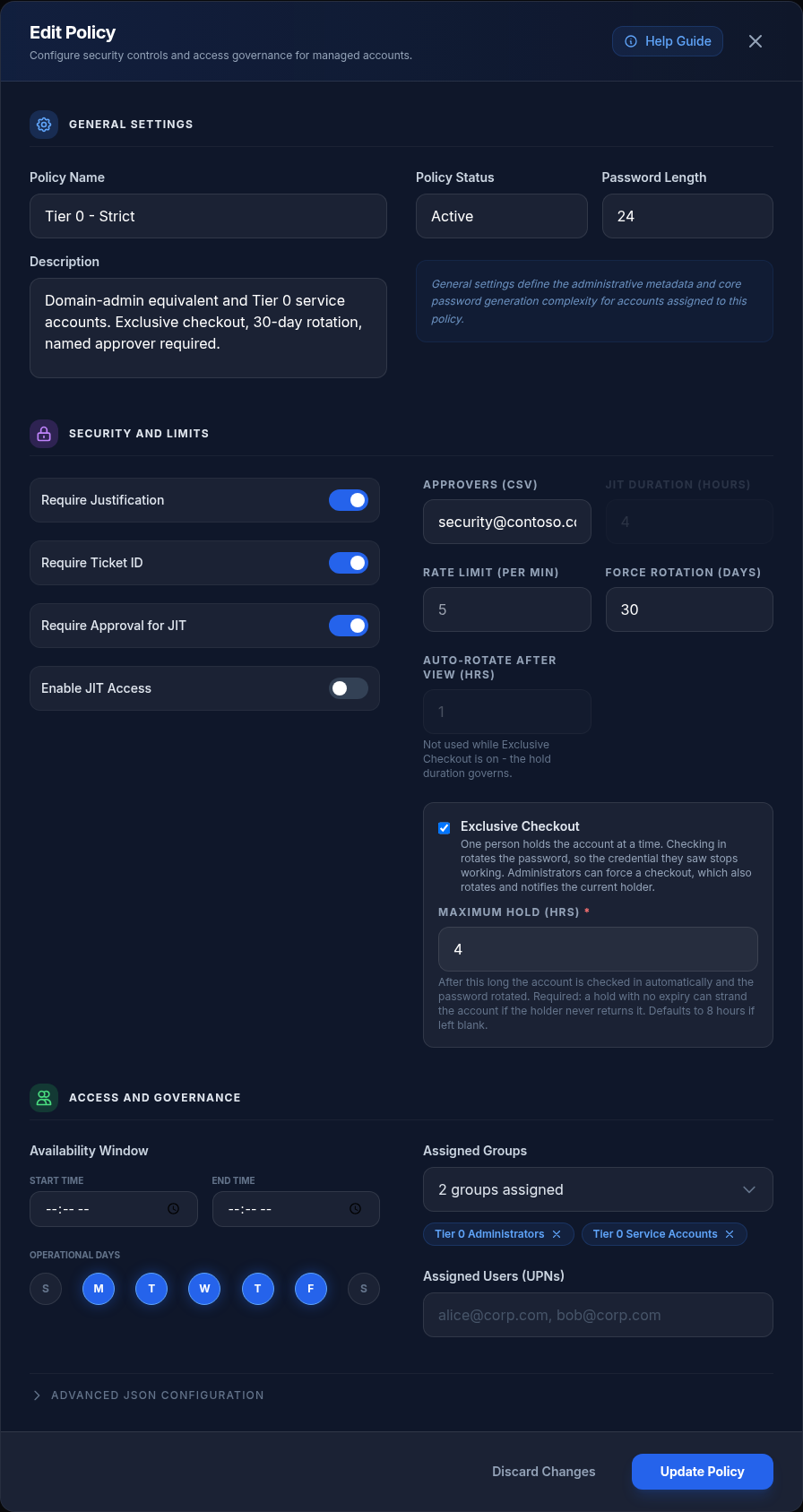
1. Exclusive Checkout vs. Standard Rotation
Policies configure how credentials behave during active sessions:
- Exclusive Checkout (
exclusiveCheckoutHours): Enforces a strict single-holder lock on the account. When enabled, other users are barred from revealing credentials while a checkout is active. Upon manual check-in, the system automatically rotates the password, eliminating shared session risks. - Scheduled Password Resets (
passwordResetAfterDays): Enforces periodic background credential rotation on a fixed schedule (e.g., every 30, 60, or 90 days), regardless of checkout activity. - Rotate After View (
autoCheckInPeriodHours): In standard non-exclusive mode, sets the maximum window a revealed credential may be used before automatic background rotation is scheduled.
2. Elevation & Access Controls
- Time Window Restrictions: Restricts checkout availability to specific business hours and days of the week.
- Mandatory Business Justification: Requires requesters to submit an explanation before checkout or elevation is permitted.
- Change / Incident Ticket Verification: Forces requesters to enter a valid ITSM ticket reference (such as ServiceNow or Jira).
- Designated Approvers: Comma-separated list of approver UPNs or email addresses required to authorize elevation requests. Leaving this blank enables instant auto-approval for the policy.
Testing with the Policy Simulator
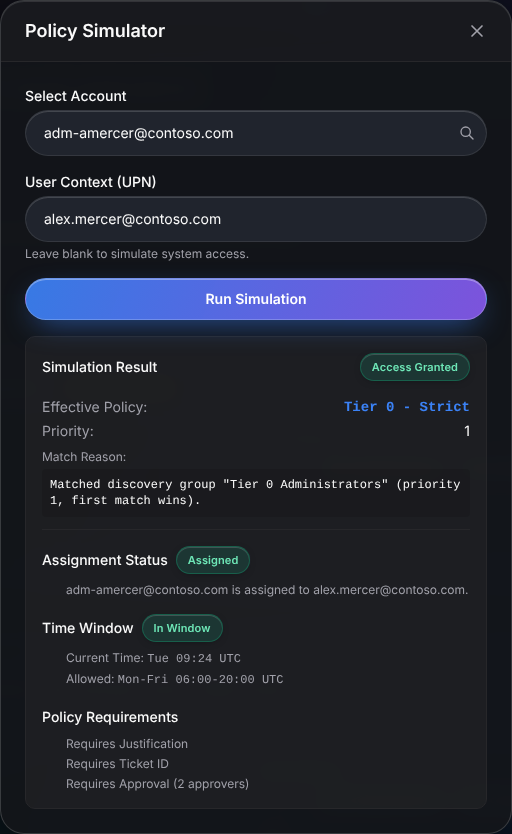
Before saving or modifying policy rules in production, administrators can execute a dry run using the Policy Simulator:
- On the Policy page, click Simulator in the top header.
- Under Select Account, search for the account by name or email.
- Optionally enter a User Context (UPN) to test one person's access. Leave it blank to simulate system access.
- Click Run Simulation.
The result shows the effective policy and its priority, the match reason that explains why that policy won, whether the user is assigned to the account, whether the current time falls inside the policy's allowed window, and the requirements the policy imposes (justification, ticket ID, approval and how many approvers). If access would be refused, the denial reason is shown in red. Nothing is changed by a simulation.
© 2026 Huntoso LLC. All rights reserved.